
Tweaking my screenshot macro
December 28, 2025 at 11:30 AM by Dr. Drang
In my recent post on the Keyboard Maestro episode of Mac Power Users, I needed a screenshot of a Typinator window and had trouble getting what I wanted. I tried using my SnapClip macro, but I found that when the macro’s user input window appeared,
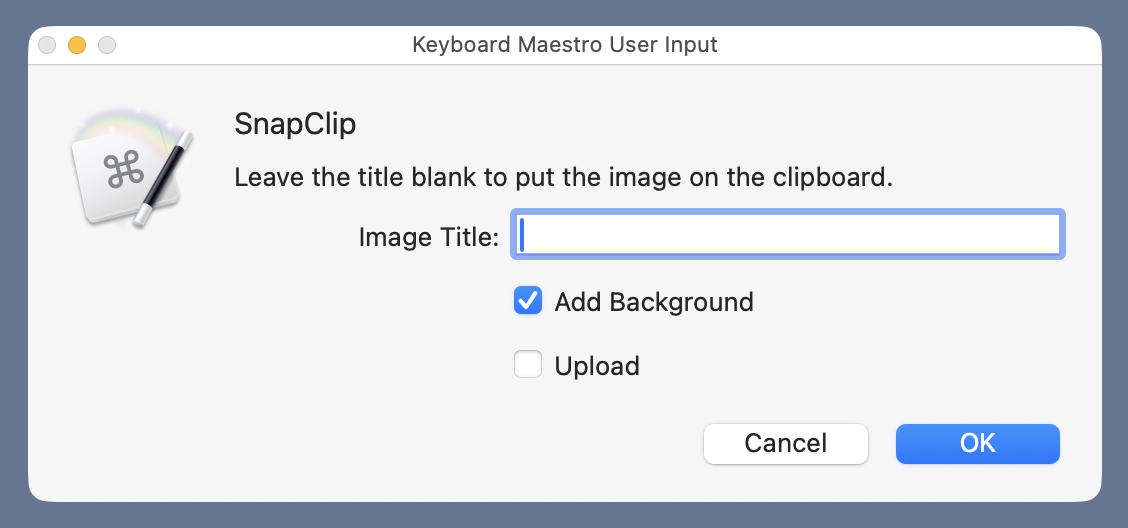
the Typinator window went into the background (as expected) but didn’t come back to the foreground when the KM window was dismissed (not as expected). I think the reason was that the Typinator window isn’t a regular application window, but whatever the reason, I had to take the screenshot “by hand” using ⇧⌘4 instead of using SnapClip. My positioning of the crosshairs was off as I tried to get both the window and a desktop background border, so the image was a little wonky:
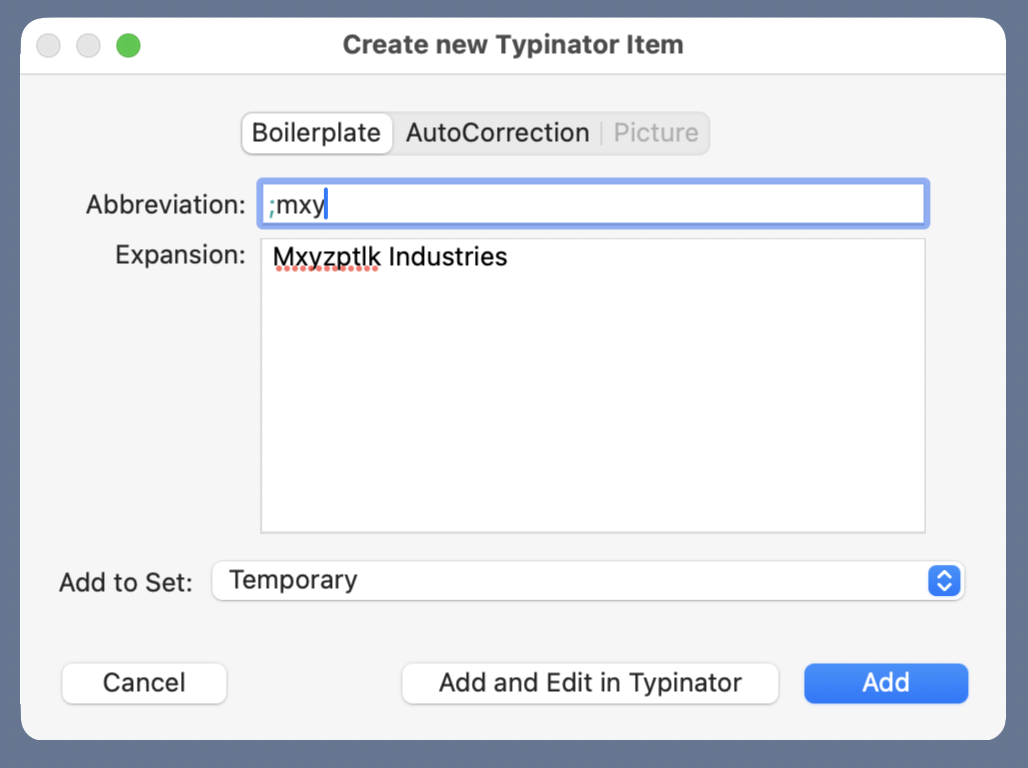
The borders are clearly of different widths. Also, and this may not be as obvious, the blue border color varies because my ⇧⌘4 screenshot captured some of the window’s shadow.
The answer was to rewrite SnapClip so the screenshot is taken before the Keyboard Maestro user input window appears. Now SnapClip can handle the Typinator window:
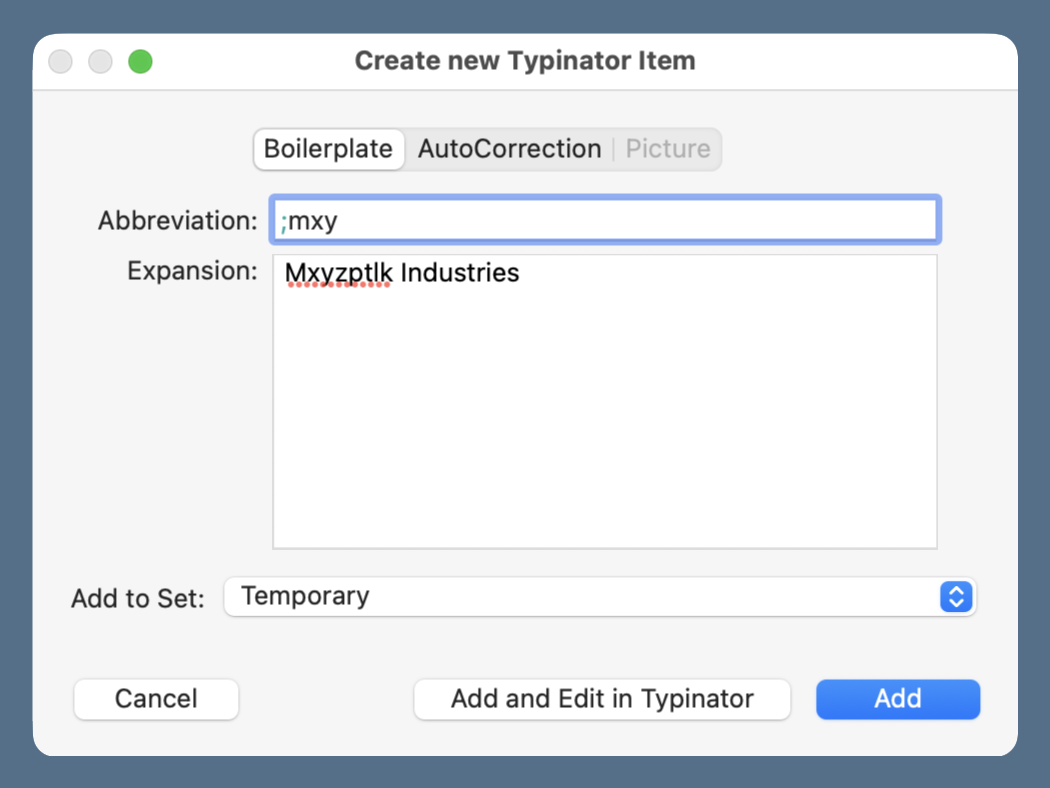
Much better.
The way SnapClip was written, it put up the user input window and used the results of that interaction to send options to a Python script named screenshot, the source code of which is included in the SnapClip post. screenshot called macOS’s built-in screencapture command with the appropriate arguments. To fix the “Typinator window problem,” I had to rewrite both the KM macro and the Python script.
Here’s the new version of SnapClip, which you can also download (you may need to right-click that link to download it instead of displaying its XML).

I’m not going to describe the whole thing. It’s basically the same as the old version but with these changes:
- The first action runs the
screencapturecommand and saves the resulting image in~/Pictures/Screenshots/zzzz.png. - All of the previous calls to execute the
screenshotscript have been changed to run a new Python script calledprocess-screenshot(which we’ll get to shortly) with~/Pictures/Screenshots/zzzz.pngas an argument.
As with the old version, I’ve colored the actions to help keep track of the nested Ifs. The outermost, which tests whether a title is given, is light blue-green, ; the middle one, which tests whether the image is supposed to have a background border, is orange, ; and the innermost, which tests whether the image is supposed to be uploaded to my server, is purplish-pink, .
The process-screenshot script is this:
python:
 1:  #!/usr/bin/env python3
 2:
 3:  import tempfile
 4:  from PIL import Image
 5:  import os
 6:  import subprocess
 7:  import shutil
 8:  from datetime import datetime
 9:  import urllib.parse
10:  import argparse
11:
12:  # Handle the arguments
13:  desc = 'Process a screenshot saved to a file.'
14:  ep = '''If a title is given, it saves the image to a file on the
15:  Desktop with a filename of the form yyyymmdd-title.png.
16:  If no title is given, the image is put on the clipboard and the
17:  upload option is ignored.'''
18:  parser = argparse.ArgumentParser(description=desc, epilog=ep,
19:            formatter_class=argparse.RawDescriptionHelpFormatter)
20:  parser.add_argument('-b', '--background', help='add desktop background border', action='store_true')
21:  parser.add_argument('-u', '--upload', help='upload to images directory and print URL', action='store_true')
22:  parser.add_argument('-t', '--title', help='image title', type=str)
23:  parser.add_argument('ssfile', help='path to screenshot file')
24:  args = parser.parse_args()
25:
26:  # Parameters
27:  type = "png"
28:  bgcolor = (85, 111, 137)
29:  border = 32
30:  optimizer = '/Applications/ImageOptim.app/Contents/MacOS/ImageOptim'
31:
32:  # Add a desktop background border if asked for
33:  if args.background:
34:    snap = Image.open(args.ssfile)
35:    # Make a solid-colored background bigger than the screenshot.
36:    snapsize = tuple([ x + 2*border for x in snap.size ])
37:    bg = Image.new('RGBA', snapsize, bgcolor)
38:    bg.alpha_composite(snap, dest=(border, border))
39:    bg.save(args.ssfile)
40:
41:  # Optimize the file
42:  subprocess.run([optimizer, args.ssfile], stderr=subprocess.DEVNULL)
43:
44:  # Save it to a Desktop file if a title was given; otherwise,
45:  # save it to the clipboard
46:  if args.title:
47:    sdate = datetime.now().strftime("%Y%m%d")
48:    desktop = os.environ['HOME'] + "/Desktop/"
49:    fname = f'{desktop}{sdate}-{args.title}.{type}'
50:    shutil.copyfile(args.ssfile, fname)
51:    bname = os.path.basename(fname)
52:
53:    # Upload the file and print the URL if asked
54:    if args.upload:
55:      year = datetime.now().strftime("%Y")
56:      server = f'user@server.com:path/to/images{year}/'
57:      port = '123456789'
58:      subprocess.run(['scp', '-P', port, fname, server])
59:      bname = urllib.parse.quote(bname)
60:      print(f'https://leancrew.com/all-this/images{year}/{bname}')
61:  else:
62:    subprocess.call(['impbcopy', args.ssfile])
63:
64:  # Delete the temporary file
65:  os.remove(args.ssfile)
The main differences between it and the screenshot script are:
- It doesn’t run
screencaptureand therefore doesn’t need to save an image file to~/Pictures/Screenshots/. - It takes the path of the already-saved screenshot as an argument and uses that variable,
args.ssfile, at various points in the script. It has a slightly different help message to reflect these changes:
usage: process-screenshot [-h] [-b] [-u] [-t TITLE] ssfile

Process a screenshot saved to a file.

positional arguments:
  ssfile             path to screenshot file

options:
  -h, --help         show this help message and exit
  -b, --background   add desktop background border
  -u, --upload       upload to images directory and print URL
  -t, --title TITLE  image title

If a title is given, it saves the image to a file on the
Desktop with a filename of the form yyyymmdd-title.png.
If no title is given, the image is put on the clipboard and the
upload option is ignored.
Otherwise, it follows the logic of screenshot.
Will this be my last version of SnapClip? Of course not. But it gets better every time I rewrite it, and I learn more about both my workflow and the ins and outs of macOS every time I change it.