
Proofreading with Writing Tools
January 1, 2026 at 6:51 PM by Dr. Drang
Yes, it’s been less than a week since I wrote about LLM proofreading and showed you the “final” version of the Keyboard Maestro macro I’d been using. And that wasn’t a lie because it is the final version of that macro. It’s just that I’m now using two new macros with a different approach. Today’s post will be about the first of these new macros, which combines the Proofreading command in Apple’s Writing Tools with BBEdit’s document comparison system.
The new macros came about because of some conversations I had after my previous proofreading posts. Marc Zeedar (via email), Giovanni Lanzani (via Mastodon), and Jason Snell (via Slack, but he also talked about it on Upgrade) all told me how they were using LLMs for proofreading, and all of their ideas were good in different ways. I’ve stolen different parts of their systems to come up with my new macros. Today’s macro is based mainly on Marc Zeedar’s work.
Marc is the publisher of xDev Magazine, which is focused on cross-platform development with the Xojo app system. As you might expect, his main proofreading system, which uses the OpenAI API, is built in Xojo, but he also has a couple of simple Keyboard Maestro macros that use Writing Tools. Marc’s main contribution to my new method of proofreading was to convince me that I shouldn’t fear having the LLM create a new version of the document I’m working on, one with all the changes it wants.
I needed convincing because I had the wrong model in my head for applying changes. I thought that if I had two versions of a document, my original and the one with the LLM’s changes, I’d have to either accept or reject each change in turn. While that’s fine for many changes, I had learned that LLMs often point out a mistake but don’t give me the fix I want. It’s a situation in which neither accept nor reject is the right answer. But if you use the comparison tools in BBEdit, you get a third option: you can edit text directly in the two-pane comparison window.
Here’s an example. (I know it’s small, but you probably don’t need to see the details to follow along. And you can zoom in if necessary.)
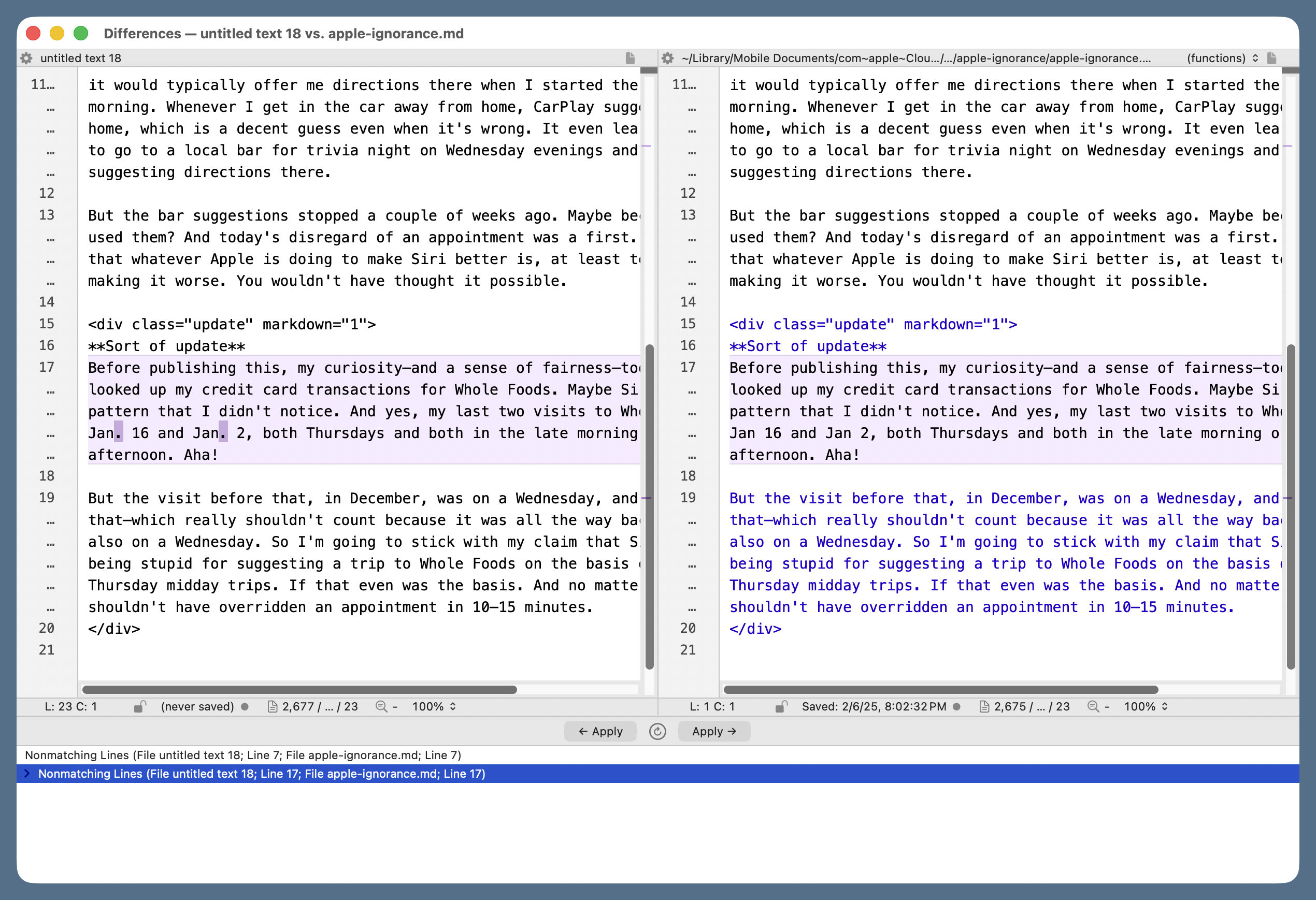
The document on the right is the original Markdown source for a post I wrote in February of last year. The document on the left has what the Writing Tools Proofread command thinks I should have written. The complaint is that I wrote “Jan 16 and Jan 2,” while Writing Tools thinks I should have written “Jan. 16 and Jan. 2,” with periods to make it clear that I was abbreviating “January.” Let’s say I agree that the text should be changed, but I don’t want what Writing Tools suggested; I want to use the full month name. I can just click in the right pane and add “uary” after each “Jan.” The regular text window with that file will be updated accordingly because the right pane isn’t just a view, it’s a live document. This makes the proofreading go very smoothly.
If you want to do this sort of thing by hand in BBEdit, choose Proofread from the Writing Tools submenu of the Edit menu.
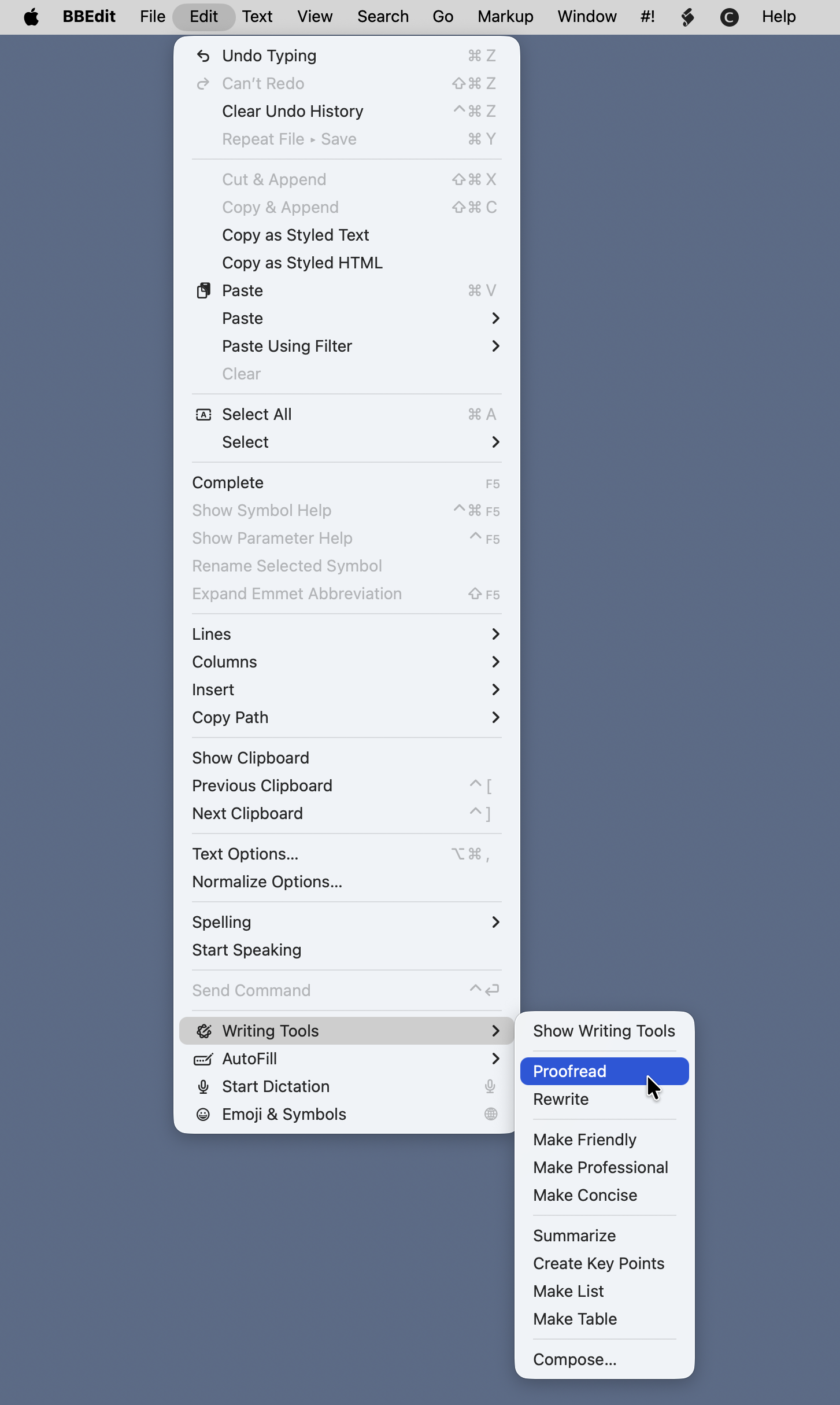
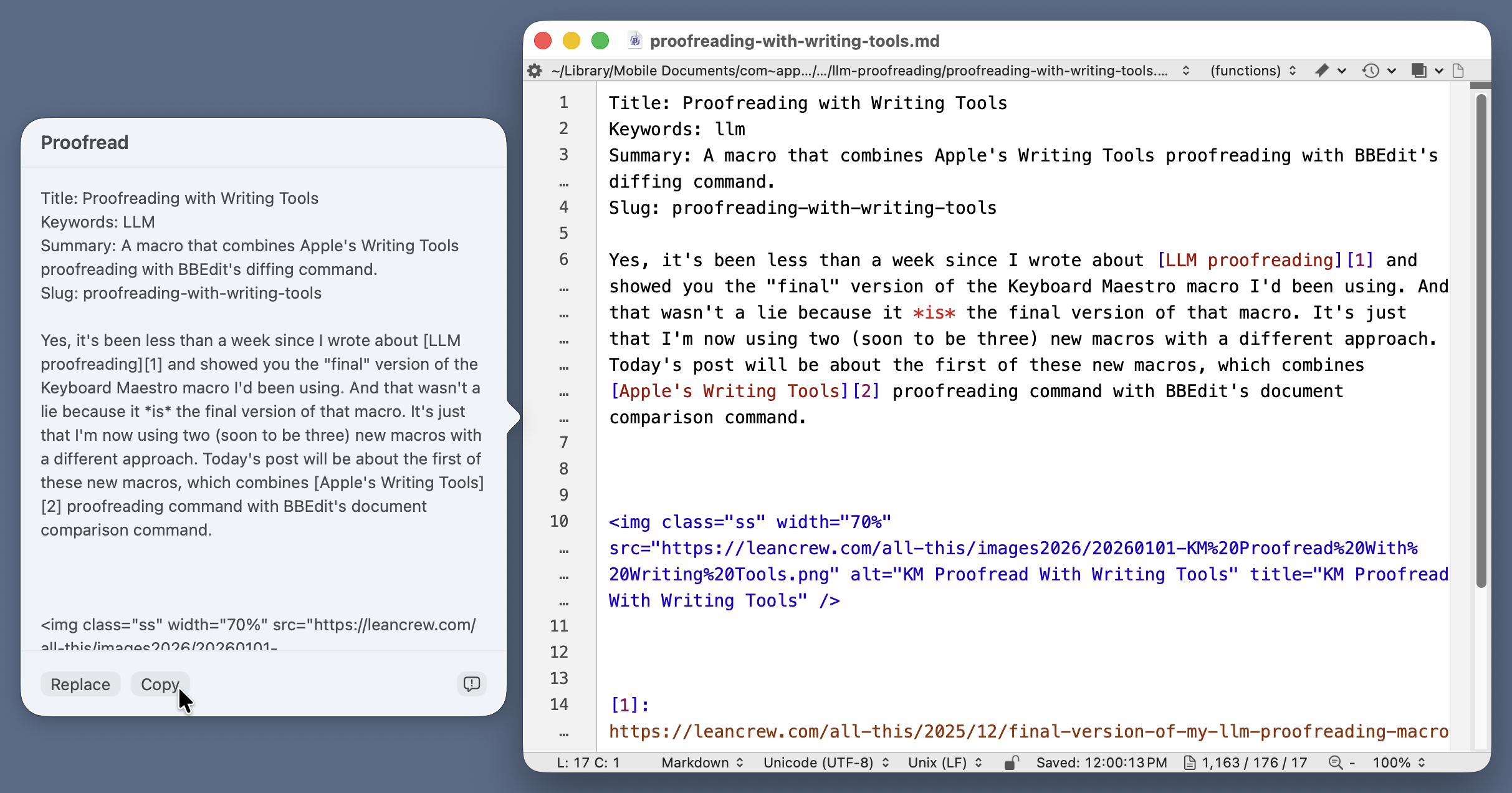
It’s quite a ways down. A new window will pop up next to the frontmost document, and Writing Tools will spend some time working out the edits that should be made. When it’s done, the buttons at the bottom of the popup window will become active, and you can click Copy to put the edited text on the clipboard.
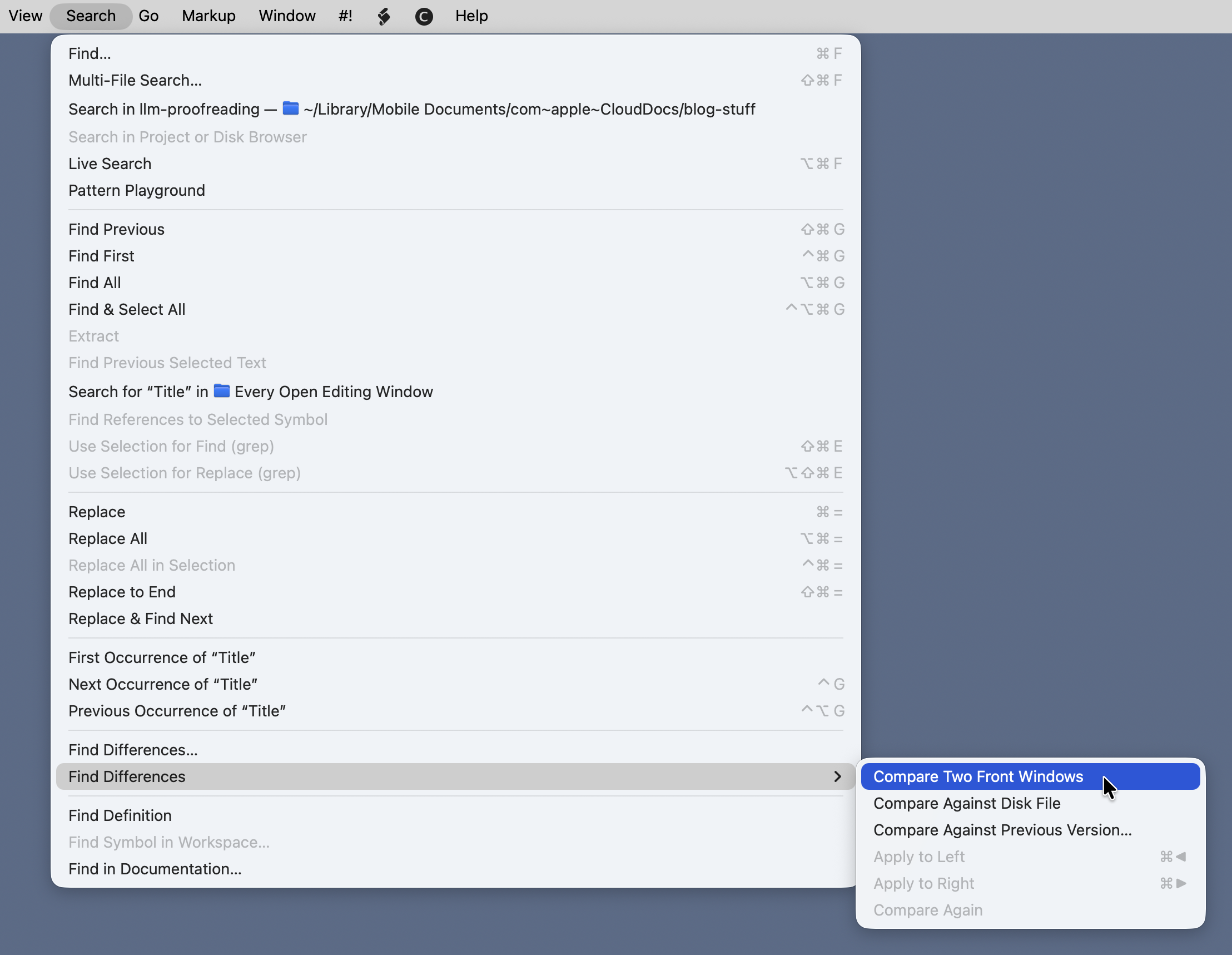
Now you create a new document in BBEdit, paste the clipboard contents into it, and choose Compare Two Front Windows from the Find Differences submenu in the Search menu.
That will bring up the two-pane comparison window we saw earlier, and you can step through the differences, applying the suggested changes, rejecting the suggested changes, or making your own changes as you see fit.
I, of course, refuse to do all that messing around with copying, pasting, and selecting menu items when I can write a Keyboard Maestro macro to do it for me. Here’s Proofread With Writing Tools (you may need to right-click the link to get it to download).
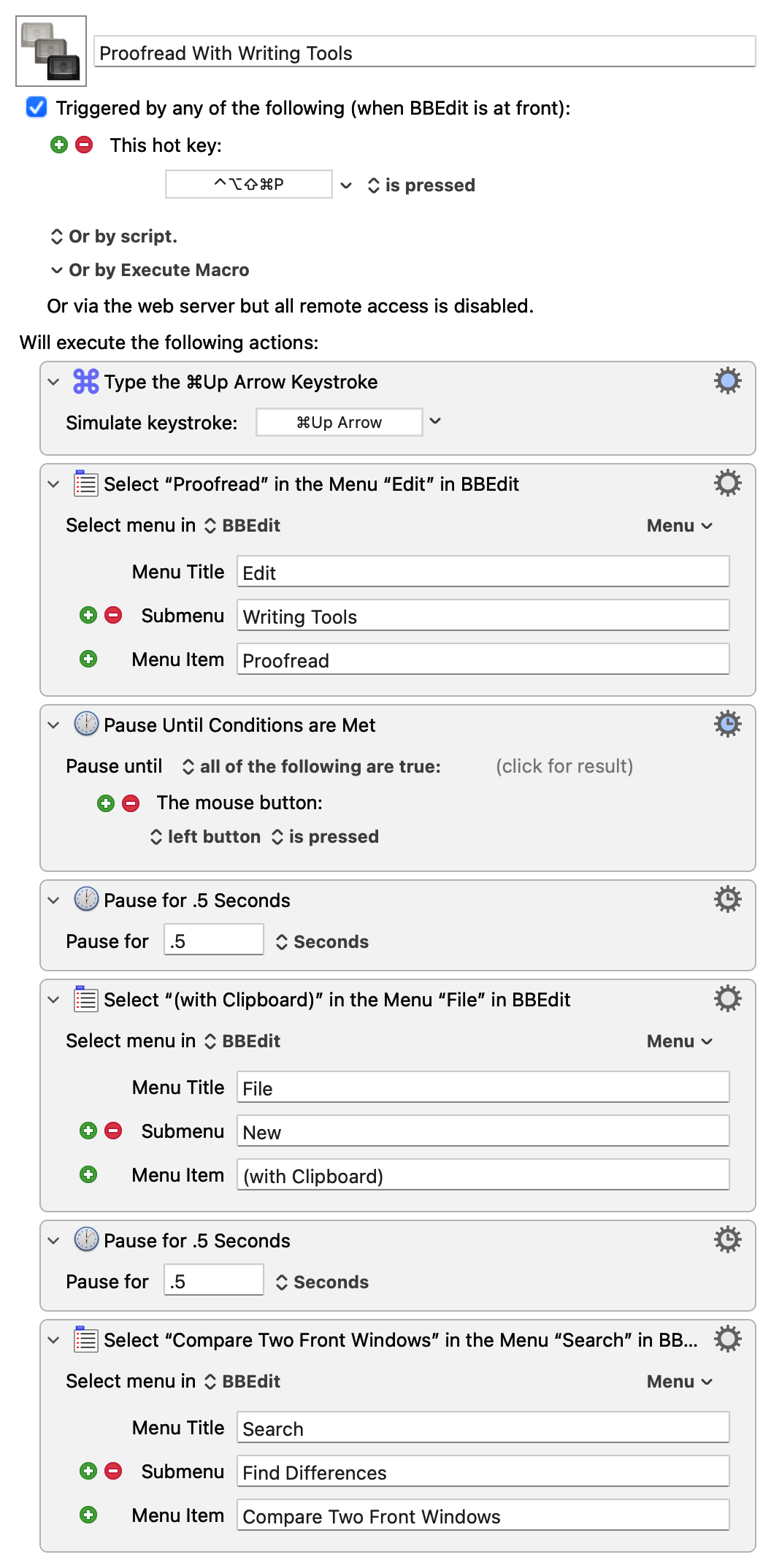
The only tricky thing about this macro is the Pause Until Conditions Are Met action. There’s no way to predict how long it will take for Writing Tools to generate the edited text. I initially thought I could pause until the Copy button became active, but that didn’t work. Then I realized that I could use my mouse click on the Copy button to get the macro going again.
You may be thinking, “Doesn’t Writing Tools suck? It is, after all, part of Apple Intelligence.” In my limited experience, it’s worked surprisingly well. I’ve had only two problems crop up:
- If the document is long and complex, Writing Tools may simply fail. It thinks for a long time and then puts up an error message saying it can’t do it. I don’t know what the underlying problem is, but it won’t finish unless you split the document into smaller chunks.
- It doesn’t understand Markdown footnote markers. Whenever I have something in the body of the document that looks like
[^note], it either replaces it with some other text (without the brackets and caret) or just deletes it. Obviously, I reject these changes, but it’s weird that it makes them. It’s never deleted the footnote text or the marker in front of it, just the marker in the body of the text.
My other new proofreading macro, which I hope to show you in the next few days, uses the Anthropic API instead of Writing Tools, but it still uses BBEdit’s comparison system. Thanks to Marc Zeedar for showing me its advantages.
Update 2 Jan 2026 7:59 AM
I added the last two actions to the macro this morning. The first of these (typing ⌘`) brings the text window with the edited text to the foreground, and the second closes it. Now when the macro finishes, the two-pane comparison window is in the foreground as before, but I no longer have to close the temporary text window.