
A two-month calendar on my Desktop
August 5, 2026 at 4:34 PM by Dr. Drang
A few days ago, I posted this image on Mastodon:
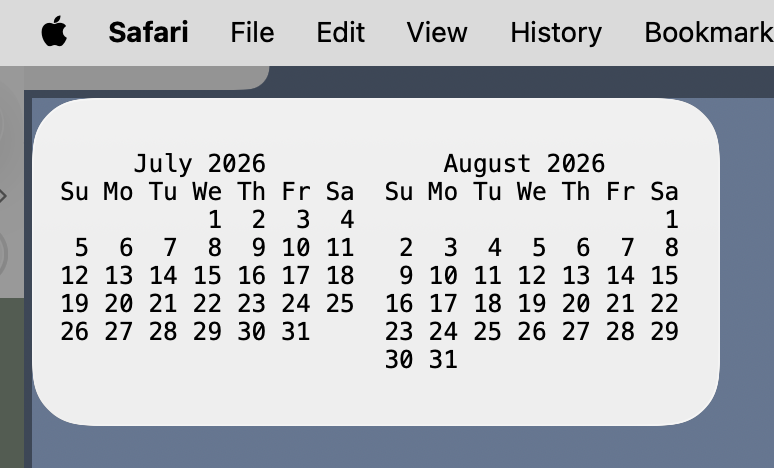
The code I ran to get this two-month calendar on my Desktop was
bash:
if [ $(date +"%-d") -gt 15 ]; then
  cal -A 1
else
  cal -B 1
fi |\
terminal-widget --target cal --font Menlo --bg "#eeeeee" --text -
I have since updated a couple of things and need more room to talk about it all.
First, the app that put that widget on my Desktop is Brett Terpstra’s TerminalWidget, which he just released. As a one-time user of GeekTool, I’ve been waiting for TerminalWidget since Brett first began talking about it. While GeekTool and the similar NerdTool might still work, I wanted an app that worked with macOS’s modern widget system. TerminalWidget does.
I put a medium-sized widget in the upper-left corner of my Desktop by dragging one out from the widget editor window. If you’ve never done this before (I hadn’t), read Apple’s instructions.
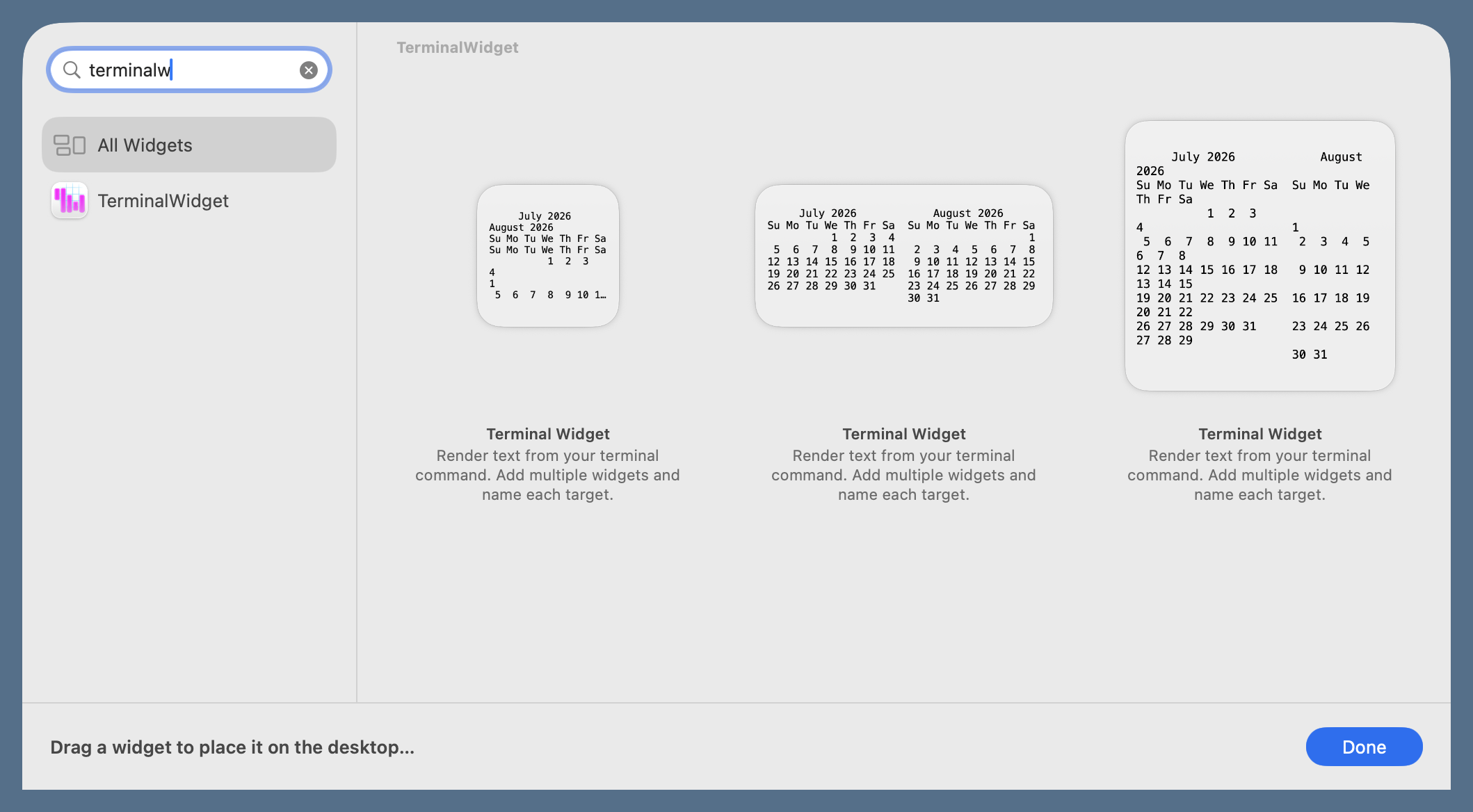
I then right-clicked on the widget and renamed it cal. Now it’s ready for me to run the command that puts the calendar into the widget.
The command is a pipeline, and the executable after the pipe is terminal-widget. This is a symbolic link to the command that’s buried in the TerminalWidget app package. I created the link with
ln -s /Applications/TerminalWidget.app/Contents/MacOS/TerminalWidget ~/bin/terminal-widget
where ~/bin is a directory in my $PATH.
I won’t go through the options given to terminal-widget; they’re explained in TerminalWidget’s CLI page. Suffice it to say that the options put whatever is sent to terminal-widget into the cal widget and format it the way I want.
Instead, let’s talk about the command that comes before the pipe:
bash:
if [ $(date +"%-d") -gt 15 ]; then
  cal -A 1
else
  cal -B 1
fi
I think this will run in any Bourne-like shell. I know it runs in zsh and bash.
The idea is to run the cal command, displaying the current month and either the month before or the month after. Which other month to show is determined by the if statement at the top. It runs the date command and formats the output as just the day of the month with no leading zero. If this is greater than 15, cal is passed the option to show one month after the current month. Otherwise, cal is passed the option to show one month before the current month.
(Brett uses cal as one of his example widgets, but his command doesn’t include an if. It always displays the current month and the month after.)
By the way, if you run the above command in the Terminal, you’ll notice its output is slightly different from what’s shown in the widget:
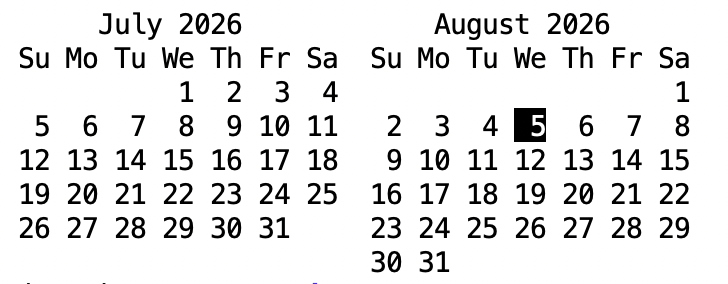
The current date is highlighted. I think this is because cal is written to format its output as plain text when it’s being saved to a file or piped to another command but jumps back to invert today’s date when it’s being run in a terminal. It’s similar to the way ls lists files one per line when being piped but formats them in columns when its output goes to a terminal.
OK, this is nice for testing out TerminalWidget, but running this command once won’t get it to change when we get past the 15th of the month. It needs to be run every day, preferably in the morning.
The classic Unix way to schedule tasks is cron, but according to Apple your Mac must be awake when a cron job is scheduled. If it isn’t, the job runs the next time the job is scheduled and the Mac is awake. Because I don’t know when my MacBook Pro will be awake, cron is not a good option for scheduling this task. I need to use launchd, which will run the specified command at the scheduled time or the next time the Mac wakes up.
The easiest way to set up launchd agents is to use LaunchControl and let its GUI handle the tricky bits, but you can do it by hand if you must. First, make a plist file that describes what command is to be run and when and save it in your ~/Library/LaunchAgents folder. Here’s the file, named com.leancrew.calwidget.plist, that LaunchControl built for me:
xml:
<?xml version="1.0" encoding="UTF-8"?>
<!DOCTYPE plist PUBLIC "-//Apple//DTD PLIST 1.0//EN" "http://www.apple.com/DTDs/PropertyList-1.0.dtd">
<plist version="1.0">
<dict>
  <key>Label</key>
  <string>com.leancrew.calwidget</string>
  <key>ProgramArguments</key>
  <array>
    <string>/bin/zsh</string>
    <string>/Users/drang/bin/calwidget.sh</string>
  </array>
  <key>StartCalendarInterval</key>
  <array>
   <dict>
    <key>Hour</key>
    <integer>6</integer>
    <key>Minute</key>
    <integer>30</integer>
   </dict>
  </array>
</dict>
</plist>
The ProgramArguments section tells launchd to run my calwidget.sh script via zsh. Because launchd commands aren’t run under my usual environment, I give full file paths to both zsh and my script. The StartCalendarInterval section tells launchd to run the job every day at 6:30 AM.
The calwidget.sh script is basically what we’ve seen before, but with a couple of small changes:
bash:
if [ $(date +"%-d") -gt 7 ]; then
  cal -A 1
else
  cal -B 1
fi |\
/Applications/TerminalWidget.app/Contents/MacOS/TerminalWidget \
  --target cal --font Menlo --fg "000000" --bg "eeeeee" --text -
I decided I’d prefer to see the month before the current month only if we’re a week or less into the current month. Hence the change from 15 to 7 in the if statement. Also, I changed the terminal-widget command to the full path of the executable it’s linked to because launchd doesn’t know my usual $PATH. And finally, I added a --fg option to ensure that both the foreground and background colors are what I want—I decided not to rely on defaults.
I loaded this job into launchd via LaunchControl, but I also tested doing it with launchctl:
launchctl load -w ~/Library/LaunchAgents/com.leancrew.calwidget.plist
The launchctl man page calls load a “legacy subcommand,” suggesting that I should learn the newer way of doing things, but I find the descriptions of the recommended subcommands incomprehensible. And I haven’t found a good tutorial for them. Again, LaunchControl just does what I want it to do.
Update 5 Aug 2026 10:36 PM
Eric Hemmeter sent me a link on Mastodon to this 2016 article by Babo D, which does a much better job of explaining launchctl’s “new” syntax than Apple does anywhere that I’ve seen. While I don’t think this will take the place of LaunchControl for me, I certainly understand the recommended subcommands better now than I ever have. I’ve saved a web archive version of the page in case it disappears. Thanks, Eric!
While this exercise was mostly a proof of concept, I do like having quick access to a two-month calendar and will probably keep this widget. Now I need to think about what other information I want immediate access to.